


Your website might be packed with valuable content, but is Google actually finding it? Are people discovering your business through search, or are technical SEO issues quietly keeping your pages out of sight?
Google Search Console helps you answer these questions without requiring advanced SEO knowledge. From tracking search performance and monitoring keyword visibility to identifying indexing issues, this free Google webmaster tool gives businesses valuable insights into how their websites perform in Google search results.
Understanding how to use Google Search Console can help you make informed SEO decisions. So let’s learn about Google Search Console, the free webmaster tool to use!
TL;DR
What is Google Search Console?
A free Google tool that shows how your site performs in Search and flags issues that block visibility.
Is Google Search Console free?
Yes. It costs nothing to use for any site you own or manage.
Is it good for SEO?
It doesn’t boost rankings directly. It shows what to fix and which searches bring visitors.
How do I set it up?
Add your site as a property, verify ownership with a DNS record or HTML tag, then submit a sitemap.
How often does it update?
Daily data trails by a day or two. A 24-hour view shows near-live activity.
Is it the same as Google Analytics?
No. Search Console shows what happens before the click. Analytics shows what happens after it.
What is Google Search Console?
Google Search Console (GSC) is a free service from Google. It tells you how your website appears in Google Search.
Think of it as a report card straight from the source. Most SEO tools estimate your traffic. GSC shows data Google itself collects about your site.
What Does Google Search Console Do?
It does four main jobs:
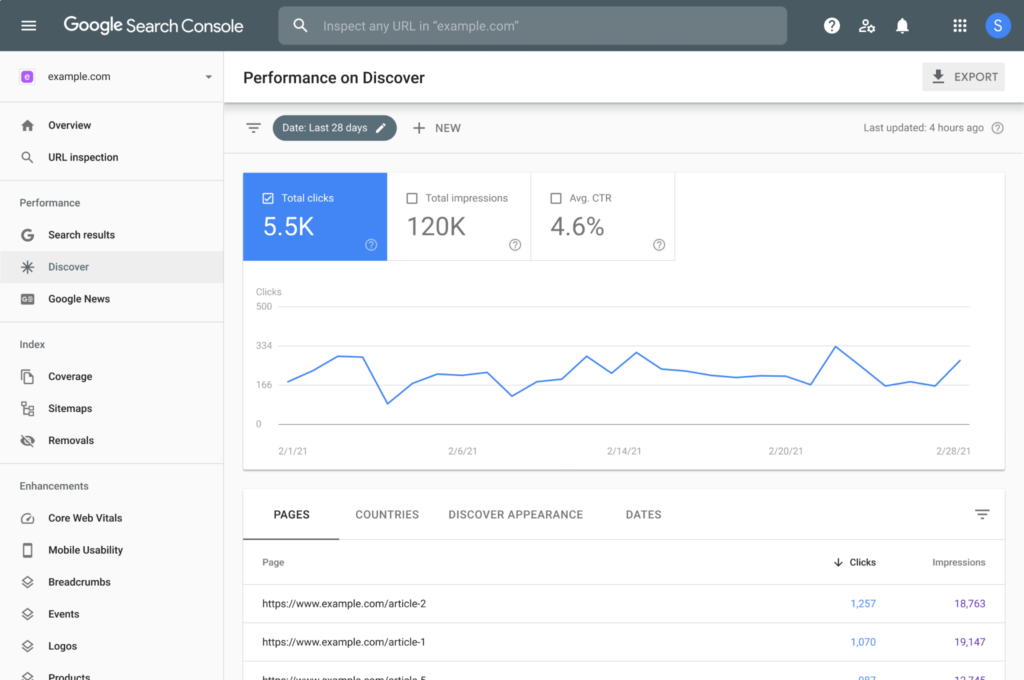
Shows the results of your search: You may see how many people viewed your site, how many clicked on it, and what searches brought them to it.
Verifies indexing: Google can only display pages that it has located and saved. GSC provides you with information about which pages were included and which weren’t, along with an explanation.
Flags problems: This is where broken pages, sluggish loading times, security problems, and manual penalties appear.
Lets you talk to Google: You can request the removal of a URL, provide a sitemap, or ask Google to review a page again.
Relatable Read: 9 Best International SEO Agencies in 2026
What is Google Search Console Used For in Digital Marketing?
Marketers use it to answer simple but important questions:
- Which searches bring people to my site?
- Which pages get seen but rarely clicked?
- Did my latest content get indexed?
- Did a site change hurt my visibility?
That’s why it sits at the center of most SEO work. It connects your content to real search behavior.
What is Google Search Console Data?
GSC data describes how your site behaves in Google results. The main pieces are:
- Clicks: How often someone clicked your result and landed on your site.
- Impressions: How often your page appeared in results.
- Click-through rate (CTR): Clicks divided by impressions.
- Average position: Where your page typically ranks for a search.
- Queries: The words people typed before seeing your result.
- Pages, countries, and devices: Where and how people found you.
What Are Google Search Console Impressions?
Your page appearing in someone’s search results is known as an impression. Clicking is not required. They might not even look at your listing.
A helpful signal is high impressions with few clicks. People notice you, but they don’t pick you. Your description or title likely needs improvement.
Is Google Search Console Free?
Yes. It is free to use Google Search Console. It doesn’t charge per site and doesn’t offer premium levels. Adding a property, inviting people, and viewing reports are all free.
The expense appears in other places. It takes time to properly read the data. It takes expertise to act on it. The majority of business entrepreneurs are caught there.
Is Google Search Console Good For SEO?
It’s one of the most useful SEO tools available. But it won’t improve your rankings by itself.
Adding your site to GSC doesn’t make Google like you more. The value comes from what you learn and what you fix. Think of it as a diagnostic scan, not a treatment.
Can I Use Google Search Console For Any Website?
You can use it for any site you own or control. You must prove ownership first. You can’t view a competitor’s data.
It works for company sites, blogs, online stores, and local business pages. The size of the site doesn’t matter.
Is Google Search Console Accurate?
It’s accurate for what it measures. The data comes straight from Google. But keep a few limits in mind:
- Rare searches are hidden: Google leaves out some search queries to protect user privacy. Totals can look higher than the sum of listed queries.
- Position is an average: Results vary by person, location, and device. Your “position 8” might be 5 for one person and 12 for another.
- It won’t match Google Analytics: The two tools count different things. GSC counts clicks from Google Search. Analytics counts visits from all sources.
Use GSC to spot trends, not to chase exact decimals.
How to Set Up Google Search Console?
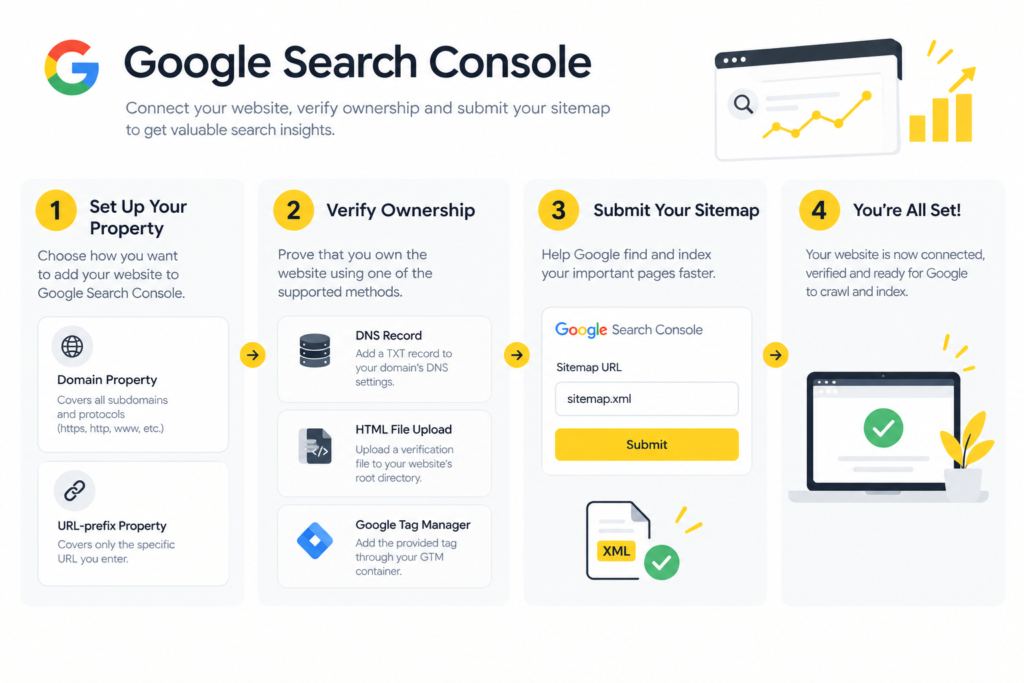
Setup takes about 15 minutes. You don’t need to code.
How to Find Google Search Console?
Yes. It is free to use Google Search Console. It doesn’t charge per site and doesn’t offer premium levels. Adding a property, inviting people, and viewing reports are all free.
The expense appears in other places. It takes time to properly read the data. It takes expertise to act on it. The majority of business entrepreneurs are caught there.
How to Create a Google Search Console Account
You don’t create a separate account. Any Google account works. Sign in, and you land on the setup screen.
How to Add a Website to Google Search Console
Click Add property. Google offers two options:
- Domain property: This covers every version of your site. That includes www and non-www, HTTP and HTTPS, and all subdomains. You verify it through your domain provider’s DNS settings.
- URL-prefix property: This covers one exact address, such as https://www.yoursite.com/. It offers more verification methods.
Which one should you choose? A domain property gives you the full picture, so we usually recommend it. If you can’t reach your DNS settings, the URL-prefix route is a fine start.
How to Verify Google Search Console
Verification proves you control the site. Google offers several ways:
- DNS record: You add a short TXT record at your domain provider. This is the method for domain properties.
- HTML file upload: You upload a small file Google gives you to your site’s root folder.
- HTML tag: You paste a line of code into your homepage’s head section.
- Google Analytics: If it’s already installed and you have edit access, this works.
- Google Tag Manager: Same idea, if you use it.
Pick the one you can finish fastest. If you use WordPress, Wix, or Shopify, search their help pages. Most have a simple guide.
Don’t remove the verification file, tag, or record afterward. If you do, Google may revoke access.
How to Connect a Website to Google Search Console
“Connecting” just means adding and verifying your site. Once that’s done, data starts flowing in. Reports can take a few days to fill.
You can also link GSC to Google Analytics 4. That lets you see search data next to visitor behavior. It’s worth doing.
How to Submit a Sitemap to Google Search Console
A sitemap is a list of your important pages. It helps Google find them.
- Find your sitemap. It’s often at yoursite.com/sitemap.xml.
- In GSC, open Sitemaps in the left menu.
- Enter the sitemap address.
- Click Submit.
The page then shows whether Google could read the file. If it shows an error, fix that first. Many SEO plugins create sitemaps automatically.
How to Give Google Search Console Access to Others
You may want to share access with a marketer, developer, or agency. Here’s how:
- Open Settings.
- Click Users and permissions.
- Click Add user.
- Enter their email and pick a permission level.
There are three levels. Owners have full control and can add or remove users. Full users can see all data and take most actions. Restricted users can view most data but can’t change settings.
Give people the lowest level they need. Keep at least two owners in your company, so you never lose control if one person leaves.
How Much Does Google Search Console Cost?
Nothing. There’s no trial, no hidden fee, and no upgrade path. Anyone offering to “sell” you Search Console access is selling a service around it, not the tool.
How Often Does Google Search Console Update?
Performance data updates daily, with a delay of a day or two. GSC also has a 24-hour view that shows near-live activity.
It keeps 16 months of performance history. Export your data now, and then again if you want a longer record.
How to Use Google Search Console for SEO as a Business
You don’t need to understand every report. Focus on a few that tie directly to revenue.
Step 1: Find Keywords You Already Rank For
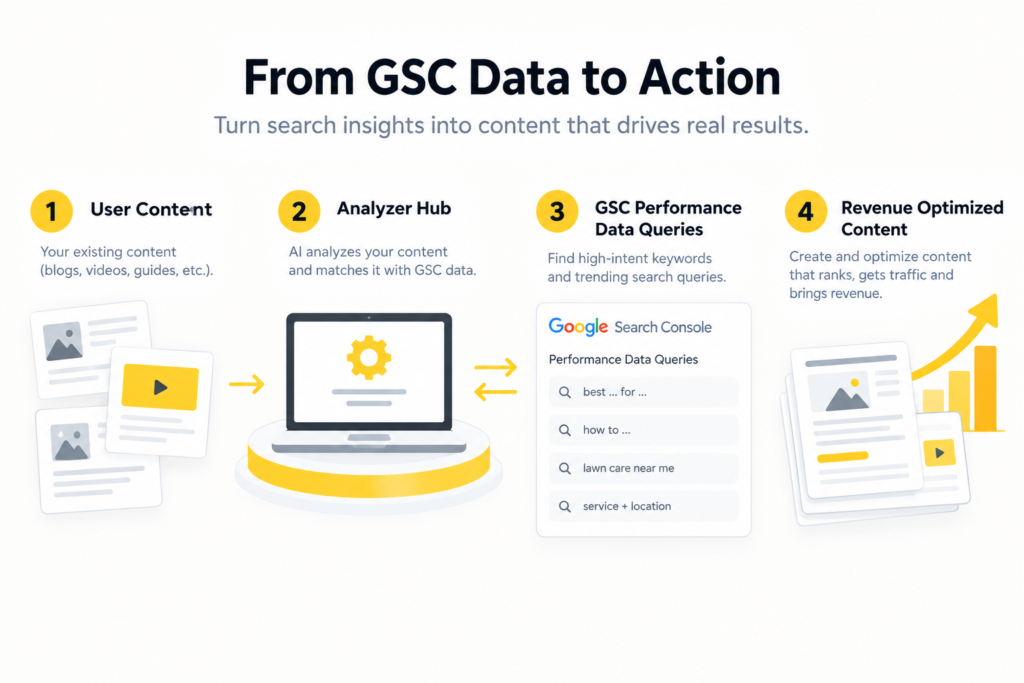
Open Performance and then Search results. Click the Queries tab.
This list shows the real words people use to find you. Sort by impressions. Look for searches where you appear a lot but rarely get clicked.
Those are your quickest wins. People are already seeing you. You just need a better title, a clearer description, or a stronger page.
How to Find Keywords in Google Search Console
Two simple filters help:
- Look for queries with positions between 8 and 20. These pages sit near the top of the results. A small push can move them onto page one.
- Look for questions people ask, such as “how much does…” or “best…for…”. Each one is a content idea.
Step 2: Check Which Pages Bring in Traffic
Click the Pages tab. See which pages earn clicks, and which don’t.
Your best pages show what works. Your weakest pages show where to improve. Maybe the topic is wrong. Maybe the content is thin. Maybe the page isn’t indexed.
Step 3: Make Sure Google Has Indexed Your Pages
Open Pages under Indexing. You’ll see how many pages Google indexed pages and how many it skipped.
Not every skipped page is a problem. Thank-you pages and admin pages should stay out. But if a product page or service page appears on the “not indexed” list, fix it.
Use the URL Inspection tool to check one page. Paste the address. Google tells you whether it’s indexed. If you just published or updated something, you can request indexing there.
Step 4: Watch Page Experience
The Core Web Vitals report shows whether your pages load fast and respond smoothly. Slow pages frustrate visitors. They also hurt your chance of ranking well.
If you see “Poor” URLs, pass the report to your developer. They’ll know what to do.
Step 5: Check for Security and Manual Actions
Open Security & Manual Actions. You want to see “No issues detected.”
If Google finds malware or a policy violation, it will tell you here. Act fast. These problems can wipe out your traffic.
Step 6: Review Your Links
The Links report shows which sites link to you and which of your pages get the most links. Strong links from trusted sites support your authority. This report helps you see where you stand.
A simple weekly routine
Spend 20 minutes each week:
- Check the Performance report for big jumps or drops.
- Scan the Pages report for new indexing errors.
- Look for pages with high impressions and low CTR.
- Note any new queries worth writing about.
Keep a simple log. After a few months, you’ll see patterns.
Use cases for businesses
Here’s how different businesses use GSC:
- Local service companies check which city and service searches bring leads.
- Ecommerce stores find product pages that Google hasn’t indexed.
- B2B firms spot the questions buyers search before they contact sales.
- Publishers and bloggers find old posts that need a refresh.
- Marketing teams prove content results to leadership with real numbers.
Relatable Read: Affiliate Marketing FAQs: 17 Questions and Answers for Beginners
Can You Do SEO for Your Website Using Google Search Console?
Partly. GSC tells you what’s happening. It doesn’t tell you what to do about it.
You can use it to find keyword ideas, fix indexing issues, and improve titles and descriptions. Many small business owners get real gains this way.
But GSC has gaps:
- It shows only your own site. Competitors are invisible to you.
- It doesn’t recommend any new keywords that you haven’t already used.
- It doesn’t create links, produce text, or correct code.
- It doesn’t clarify why a decline occurred. You need to figure that out.
The simple part is reading data. It takes experience to turn it into a plan. An algorithm change, a technological issue, or more formidable rivals could cause a decline in traffic. Each requires a unique solution.
Additionally, search is evolving. These days, people can get replies from ChatGPT and Google’s AI features. It’s no longer all about ranking on page one. Additionally, brands must show up in AI-generated responses. GSC cannot lead you there on its own.
How Can We Help Your Business Grow in Google Search?
At MonsterClaw, we work with Search Console data every day. But we don’t stop at the dashboard.
We’re a performance and affiliate marketing agency. SEO, AEO (answer engine optimization), and GEO (generative engine optimization) sit at the core of what we do. That mix matters. Most agencies stop at rankings. We focus on being found, cited, and chosen.
Here’s what that looks like for you:
- A clear read of your data: We set up and audit your Search Console account. We tell you what matters and what doesn’t.
- A plan tied to revenue: We rank opportunities by business value, not by vanity numbers.
- Content built to rank and get cited: Our team writes long-form content that follows E-E-A-T principles and answers real buyer questions.
- Technical fixes that stick: We find indexing and speed problems and see them through.
- Visibility beyond blue links: We optimize for search results and AI-generated answers.
You don’t have to learn every report. You don’t have to guess what to fix first. We handle the work, and you see the results.
If you’d like to know what your Search Console data says about your business, talk to the MonsterClaw team. We’ll review your site and show you where the biggest gains are.